

Stop Using RAG for Small Docs! Build an MCP Resource Server with Spring AI
Hey Learners! In this comprehensive tutorial, we’ll explore how to build a real-time document server using Spring AI and the Model Context Protocol (MCP). If you’ve been using RAG (Retrieval Augmented Generation) for every document-based AI project, this article will show you when a simpler approach makes more sense. We’ll build an MCP server that exposes documents as resources, detects file changes automatically, and notifies clients in real-time.
Watch the Full Video Tutorial:

What is MCP and Why Should You Care?
Model Context Protocol (MCP) is an open standard by Anthropic that provides a unified way for AI applications to connect to data sources. Think of it as a “USB port for AI” – a standardized interface that lets AI models access external data without complex setup.
MCP Resources vs RAG – The Key Differences:
When to Use MCP Resources:
✅ You have fewer than 100 documents
✅ Documents change frequently (hourly/daily)
✅ You need real-time access
✅ Working with config files, logs, or personal documents
✅ You want simple, maintainable infrastructure
✅ Don’t need semantic search capabilities
When to Stick with RAG:
✅ You have 1000+ documents
✅ Documents are relatively static
✅ You need semantic search (“find documents about X concept”)
✅ Building a company-wide knowledge base
Building the MCP Server – Step by Step
Project Structure:
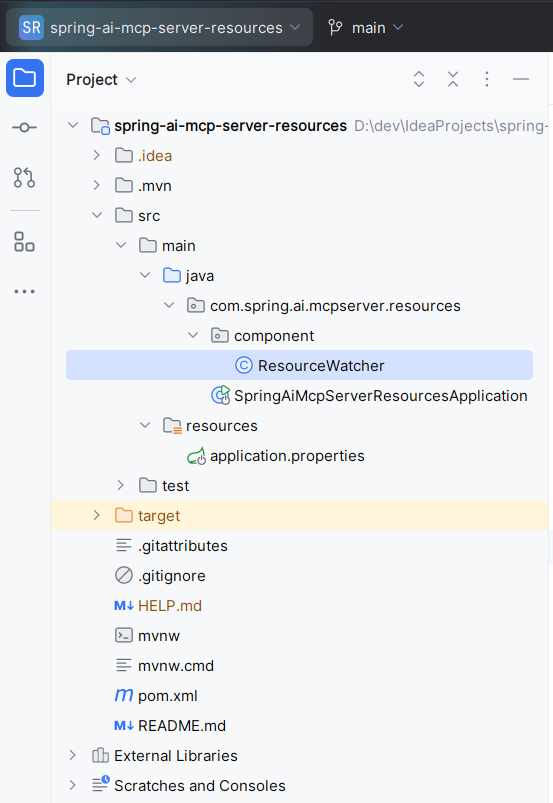
Step 1: Dependencies & Configuration
First, add the required dependencies to your pom.xml:
    <dependencies>
        <dependency>
            <groupId>org.springframework.ai</groupId>
            <artifactId>spring-ai-starter-mcp-server-webflux</artifactId>
        </dependency>

        <dependency>
            <groupId>commons-io</groupId>
            <artifactId>commons-io</artifactId>
            <version>2.16.1</version>
        </dependency>
    </dependencies>
Configure your application.properties:
spring.application.name=spring-ai-mcp-server-resources

# MCP Server Configuration
spring.ai.mcp.server.name=my-mcpserver-resources
spring.ai.mcp.server.version=1.0.0
spring.ai.mcp.server.resource-change-notification=true

# Logging
logging.level.org.springframework.ai=DEBUG
server.port=8040

# Document Directory Path
resource.directory.path=F:\\Temp\\documents
Key Configuration:
resource-change-notification=true – This is crucial! It enables the server to notify clients when resources change. Without this, clients won’t receive update notifications. Its default value is ‘true’, since we are using this feature, I had explicitly turned this on.
Step 2: Main Application Class
Create the main Spring Boot application that exposes documents as MCP resources:
@SpringBootApplication
public class SpringAiMcpServerResourcesApplication {

    @Value("${resource.directory.path}")
    private String directoryPath;

    public static void main(String[] args) {
        SpringApplication.run(SpringAiMcpServerResourcesApplication.class, args);
    }

    @Bean
    public List<McpServerFeatures.SyncResourceSpecification> myResources() {
        String path = directoryPath;
        Path folderPath = Paths.get(path);

        try(Stream<Path> paths = Files.list(folderPath)) {
            List<McpServerFeatures.SyncResourceSpecification> resources = paths
                    .map(this::getResourceSpecification)
                    .collect(Collectors.toList());

            return resources;
        } catch (IOException e) {
            return Collections.emptyList();
        }
    }

    private McpServerFeatures.SyncResourceSpecification getResourceSpecification(Path filePath) {
        String fileName = filePath.getFileName().toString();
        Path absolutePath = filePath.toAbsolutePath();
        String fileUri = "file://" + absolutePath;
        String mimeType = "text/plain";

        var documentResource = new McpSchema.Resource(
                fileUri,
                fileName,
                "Document: " + fileName,
                mimeType,
                null
        );

        McpServerFeatures.SyncResourceSpecification spec = new McpServerFeatures.SyncResourceSpecification(documentResource,
                (exchange, request) -> {
                    try {
                        String textContent = Files.readString(absolutePath);
                        McpSchema.TextResourceContents textContents = new McpSchema.TextResourceContents(request.uri(), mimeType, textContent);

                        return new McpSchema.ReadResourceResult(List.of(textContents));
                    } catch (IOException e) {
                        throw new RuntimeException(e);
                    }
                });
        return spec;
    }
}
What’s happening here:
1. @Bean myResources() – This method is called by Spring AI MCP to get the list of available resources
2. Files.list(folderPath) – Scans the directory and creates a resource specification for each file
3. getResourceSpecification() – Converts each file into an MCP Resource with metadata (URI, name, MIME type)
4. Lambda handler – Defines what happens when a client requests the resource content (reads and returns the file)
Step 3: Real-Time File Watching
Now let’s add automatic file change detection using Apache Commons IO:
@Component
public class ResourceWatcher {

    @Value("${resource.directory.path}")
    private String directoryPath;

    @Autowired
    private McpSyncServer mcpSyncServer;

    @PostConstruct
    public void start() throws Exception {

        FileAlterationObserver observer = new FileAlterationObserver(directoryPath);
        observer.addListener(new FileAlterationListenerAdaptor() {

            @Override
            public void onFileChange(final File file) {
                System.out.println("File created: " + file.getName());
                mcpSyncServer.notifyResourcesListChanged();
            }

        });
        new FileAlterationMonitor(2000, observer).start();
    }

}
How it works:
1. FileAlterationObserver – Watches the specified directory for changes
2. FileAlterationListenerAdaptor – Provides callback methods for file events (create/modify/delete)
3. onFileChange() – Triggered when any file in the directory changes
4. mcpSyncServer.notifyResourcesListChanged() – This is the magic! It sends a notification to all connected MCP clients
5. FileAlterationMonitor(2000, observer) – Checks for changes every 2 seconds (2000 milliseconds)
💡 Pro Tip: The 2-second interval is configurable. For production, you might increase it to 5-10 seconds to reduce CPU usage, or decrease it to 1 second for more responsive updates.
The Complete Flow:
Step 4: Testing the Server
Run your application:
mvn spring-boot:run
Now test file changes:
1. Edit a file – Wait 2 seconds, you’ll see: “File changed: cover-letter.txt”
2. Add a new file – The watcher detects it immediately
3. Delete a file – Notification sent to clients
Real-World Use Cases:
1. Configuration File Manager
Expose your application’s config files to an AI assistant. When debugging configuration issues, ask the AI “What’s wrong with my database config?” and it reads the actual file in real-time.
2. Personal Document Assistant
Point the server at your documents folder – resumes, project reports, meeting notes. Ask AI questions like “What projects have I worked on?” without uploading to cloud services.
3. Live Log Analyzer
Expose application logs as resources. AI monitors patterns, detects anomalies, and alerts you to potential issues before they become critical.
4. Code Documentation Helper
Expose your codebase as resources. AI helps with code reviews, suggests improvements, explains complex logic, and generates documentation.
5. Dynamic API Response Cache
Store API responses as files, expose them as resources. AI analyzes trends, compares responses over time, and detects changes in external services.
Performance Considerations
1. Directory Size:
The Files.list() operation scans the entire directory. For best performance:
✅ Keep directories under 1000 files
✅ Use subdirectories if you have many files
✅ Consider caching the resource list
2. File Watch Interval:
The 2-second polling interval is a tradeoff:
• Lower (1 second): More responsive, higher CPU usage
• Higher (5-10 seconds): Lower CPU usage, slight delay in updates
Adjust based on your needs!
3. File Size:
MCP Resources work best with text files under 5MB. For larger files:
✅ Consider streaming or chunking
✅ Use file references instead of full content
✅ Implement pagination for large datasets
What’s Next? Building the MCP Client
In Part 2 of this series, we’ll build the MCP Client that:
✅ Connects to this MCP server
✅ Lists available resources
✅ Reads document content
✅ Receives real-time update notifications
✅ Uses AI (OpenAI, Claude, or Ollama) to analyze documents
✅ Automatically refreshes when files change
Subscribe to my YouTube channel to get notified when Part 2 is released!
Source Code & Resources
📺 Full Video Tutorial: Watch on YouTube
💻 Source Code: GitHub Repository
🔗 MCP Specification: Model Context Protocol
Key Takeaways
✅ RAG isn’t always the answer – For small document sets (<100 files), MCP Resources are simpler and more efficient
✅ Real-time updates are powerful – File changes are detected and communicated instantly, no re-indexing delays
✅ Simple infrastructure – No vector databases, no embedding models, just a Spring Boot application
✅ Production-ready – Major tools like Claude Desktop use MCP for file access
✅ Use both together – MCP for live data, RAG for historical semantic search
Questions or feedback? Drop a comment below or on the YouTube video!
Happy coding! 🚀


